Build a signable template
Load a PDF, place fields for each signer, and reuse it for every send.
3 min read · Updated July 13, 2026
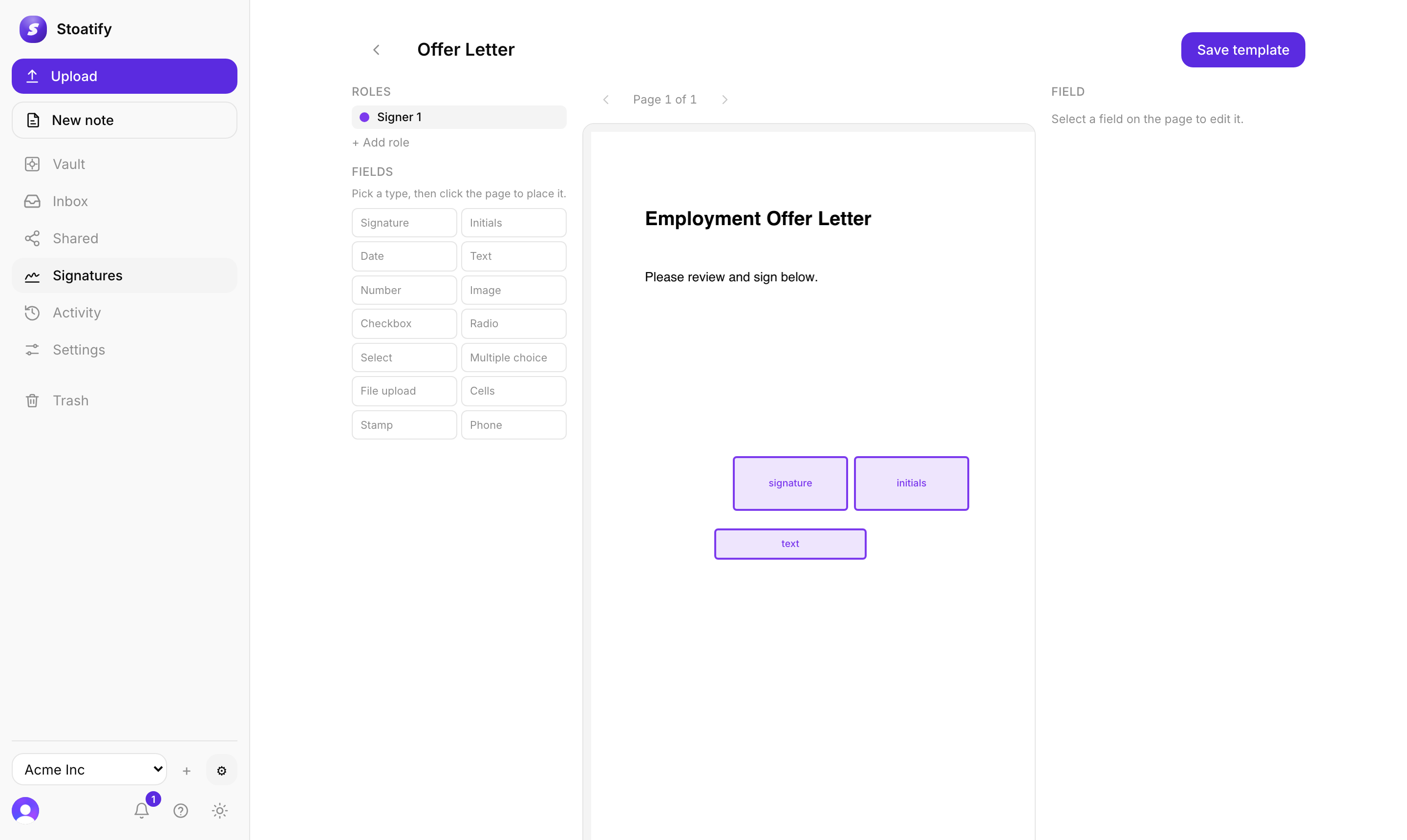
A template turns an ordinary PDF into a signable document by placing fields on the page, exactly where a signature, date, or value belongs. Build it once and reuse it for every send.
Build it
- 1Open Signatures and choose New template.
- 2Upload the PDF you want signed.
- 3Add a role for each signer (Signer 1, Signer 2, and so on).
- 4Pick a field type, click the page to place it, and assign it to a role. Repeat for every field, then Save template.
The field types
There are 14 field types: signature, initials, date, text, number, image, checkbox, radio, select, multiple choice, file upload, cells, stamp, and phone. Assign each to the role that fills it in.
Good to know
Templates are built on the web app. A template snapshots its own copy of the PDF, so later edits to the original document never change it.
Tip
Reuse a template for every send, no need to rebuild it. Next: Send a document for signature.
Stoatify sends only this article's route and your Yes or No choice.