Storage and usage
See how much you're using against your plan, and what to do near a limit.
3 min read · Updated July 13, 2026
You can always see where you stand against your plan's limits, so nothing sneaks up on you.
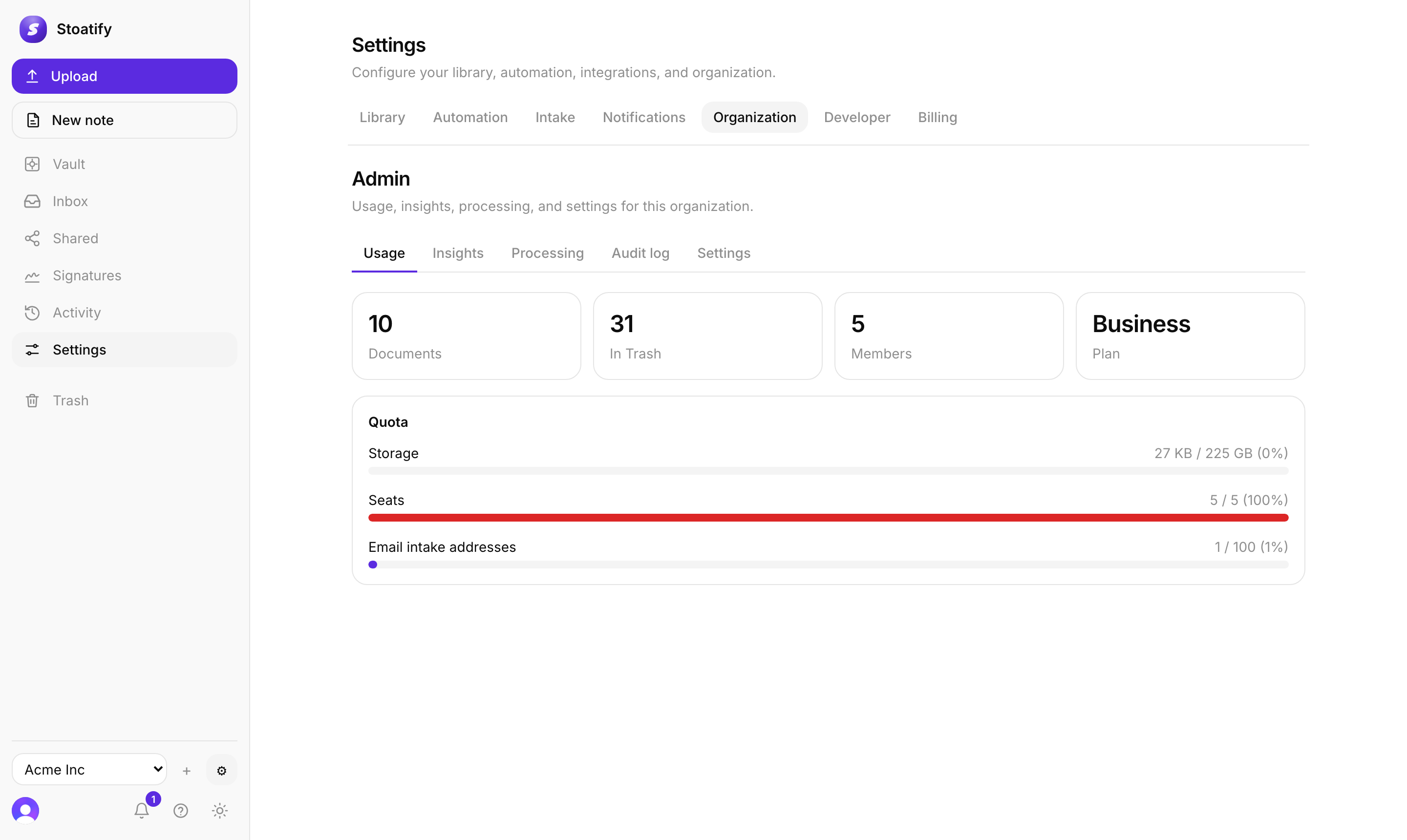
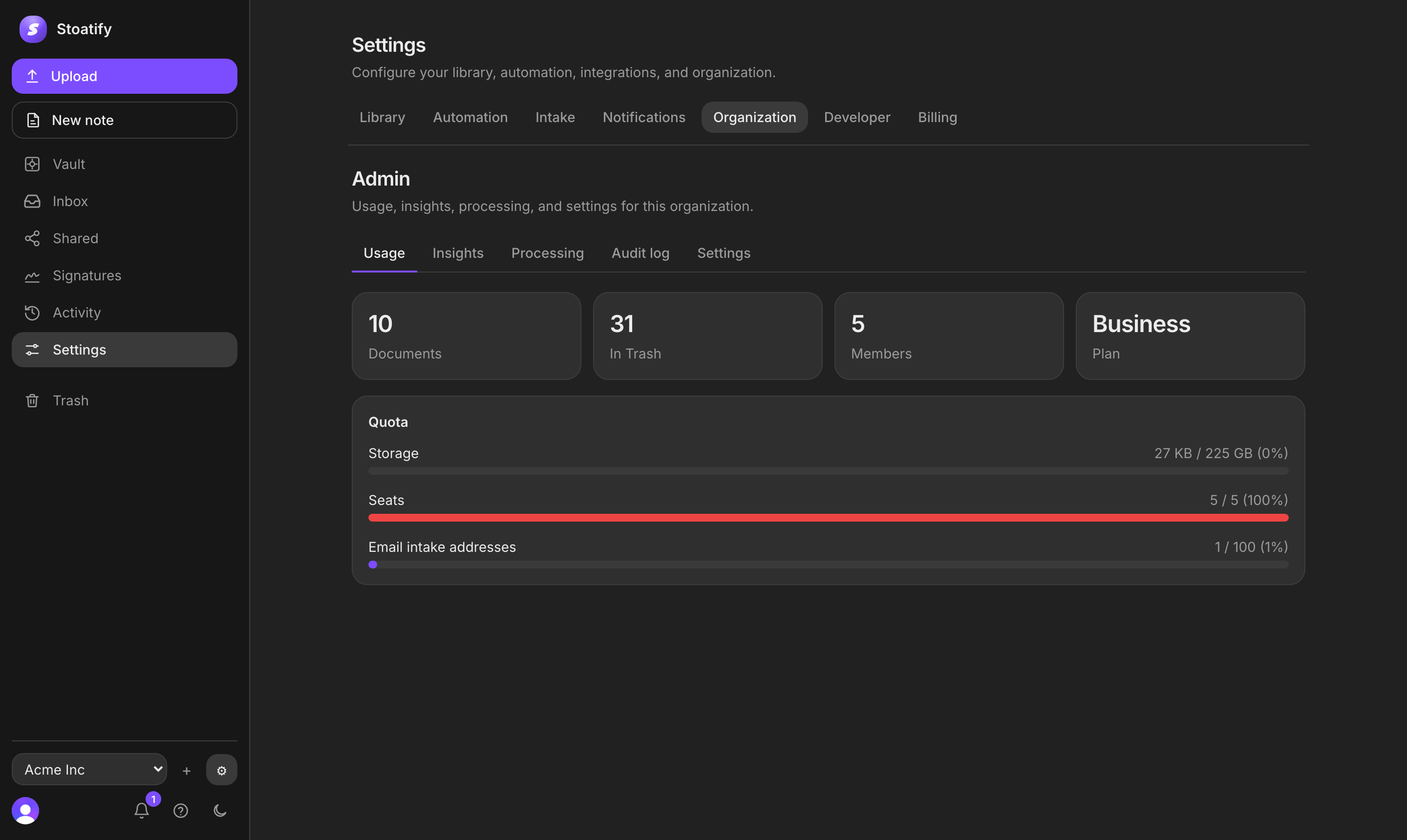
Where to look
- The Plan & billing panel shows your storage bar and, for teams, seats used.
- Owners and Admins can see a fuller breakdown: documents, trashed count, members, seats, and storage.
If you're near a limit
- Storage full? Empty Trash to reclaim space, or upgrade for more.
- File too big? Each plan caps the size of a single upload; compress or split a large scan, or upgrade for a higher limit.
Good to know
Trashed documents still count toward storage until they're purged. Emptying Trash frees the space immediately.
Was this article helpful?
Stoatify sends only this article's route and your Yes or No choice.