How search works
OCR reads your documents so you can search their contents, not just their names.
3 min read · Updated July 13, 2026
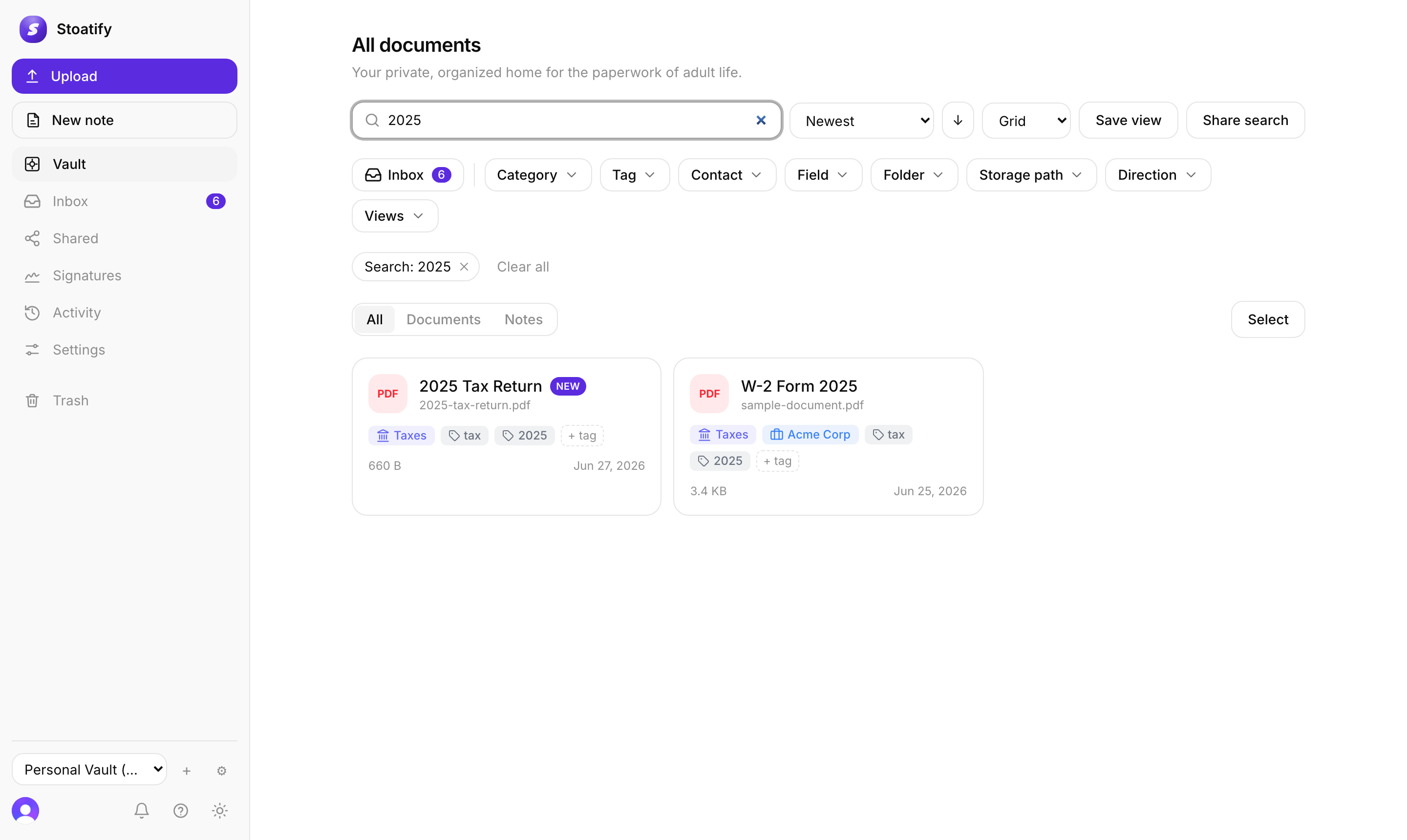
The single most useful thing about Stoatify is that you can forget where you filed something. Search reads the text inside your documents, not only their filenames, so you find a policy by typing the insurer's name even when the file is called scan_0042.pdf.
What search looks at
The moment you upload a scan, photo, or PDF, Stoatify extracts the words on the page into searchable text. A plain keyword then matches across:
- The text inside images and scanned PDFs, pulled out by OCR.
- The document title and its original filename.
- The body of notes you write.
Tags, categories, and dates aren't plain text, they're matched with the filter chips or search operators instead. See What Stoatify searches for the full picture.
Three ways to narrow
- 1Click the search bar at the top of any screen and type a word you know appears in the document.
- 2Add filter chips (category, tag, field, and more) to slice the results without typing.
- 3Reach for operators like
tag:invoice due:<2026-07when you want precision.
Good to know
A document is searchable once it finishes processing (its OCR reaches the ready state), which is near-instant for most files and a moment or two for a large scanned PDF. Text extraction runs inside Stoatify: no document bytes are sent to a third-party service to be read. See Where your data lives.
Tip
Ready for precision? Learn the advanced search queries.
Stoatify sends only this article's route and your Yes or No choice.