How text extraction and OCR work
What Stoatify does to every upload so its words become searchable.
3 min read · Updated July 13, 2026
The reason you can search inside a scan is that Stoatify reads the text out of every document the moment it arrives. It picks the right method for each file, so a crisp PDF and a phone photo both end up searchable.
The right method per file
- Born-digital PDFs already carry a text layer, Stoatify reads it directly, no OCR needed.
- Scans, photos, and image-only PDFs are run through OCR (optical character recognition) to turn pixels into text.
- Word, Excel, PowerPoint, and OpenDocument files are rendered to a clean PDF, and their text is read from that.
- Plain text and CSV are read as they are.
Stoatify also reads barcodes and QR codes it finds on a page, which is how a document can pick up an archive serial number automatically.
The processing states
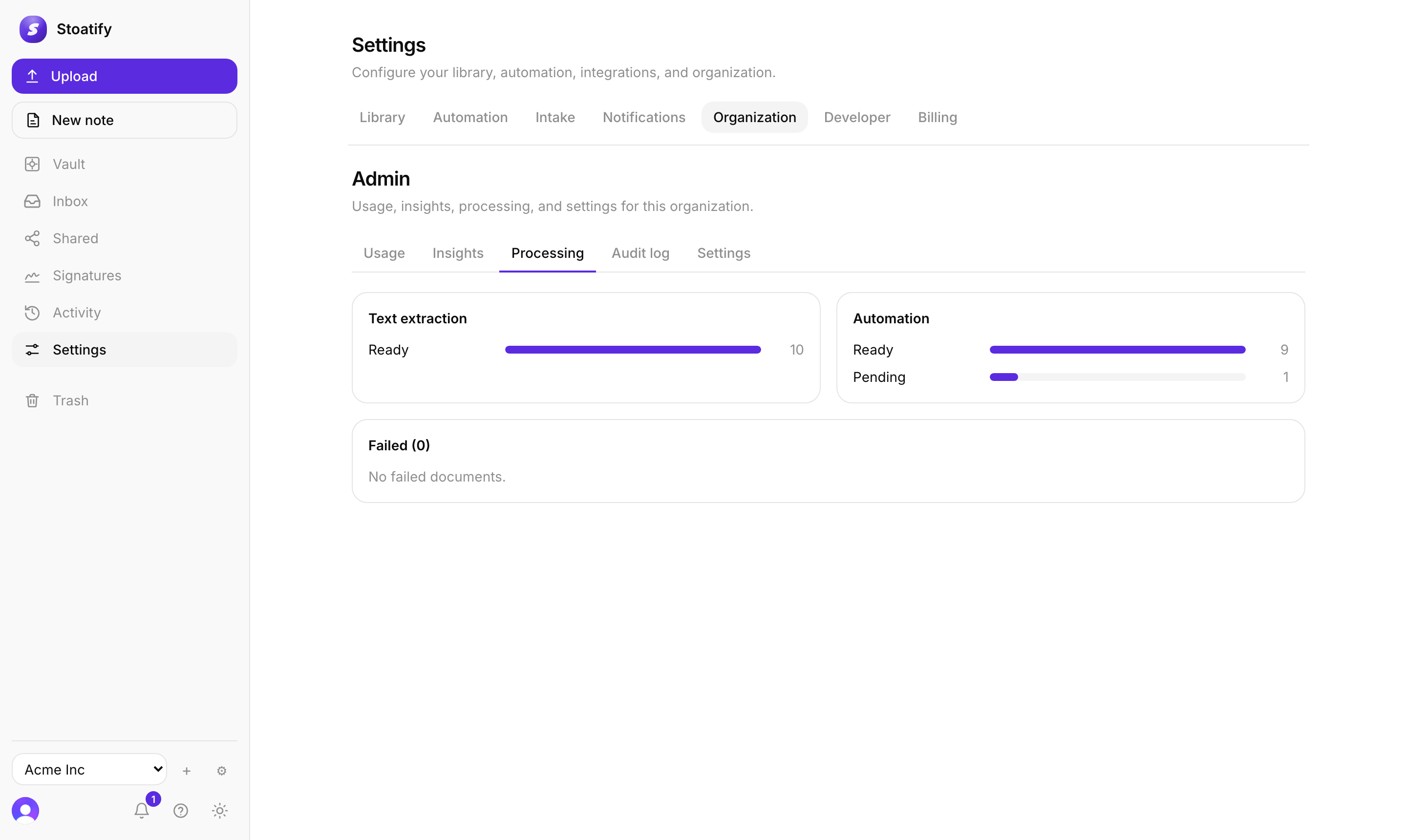
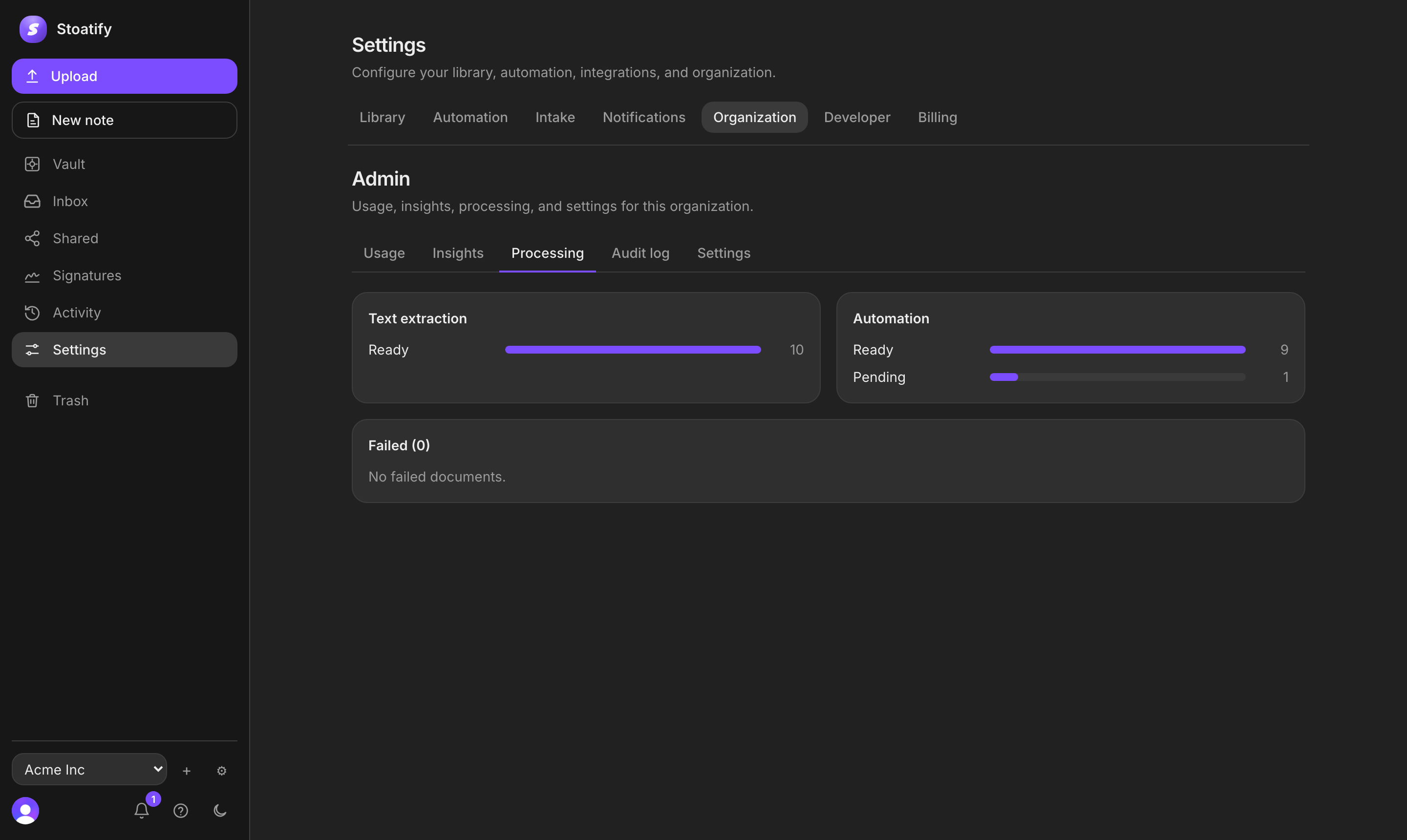
Each document moves from pending (queued) to ready (text extracted and searchable). A file that genuinely can't be read is marked failed, and a format with no text to find is simply skipped.
Good to know
OCR runs inside Stoatify: no document bytes are sent to a third-party service to be read. A large scanned PDF may take a few moments to become searchable.
Tip
Reading another language, or an office file? See OCR languages and office formats. Something not turning up? See Why can't I find a document?.
Stoatify sends only this article's route and your Yes or No choice.