Why can't I find a document?
The handful of reasons a search comes up empty, and how to fix each.
3 min read · Updated July 13, 2026
If a search misses a document you're sure is there, it's almost always one of these, and each has a quick fix.
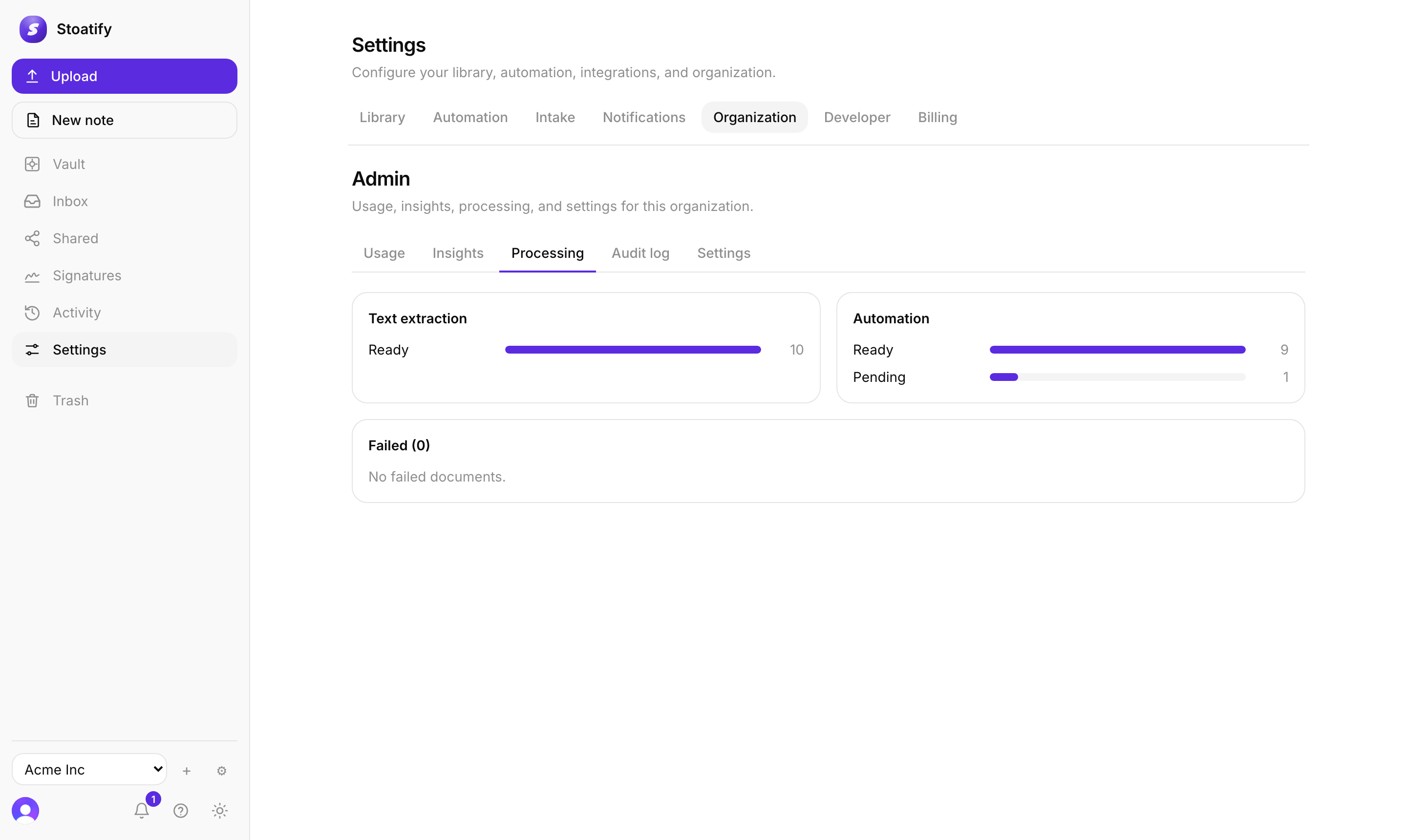
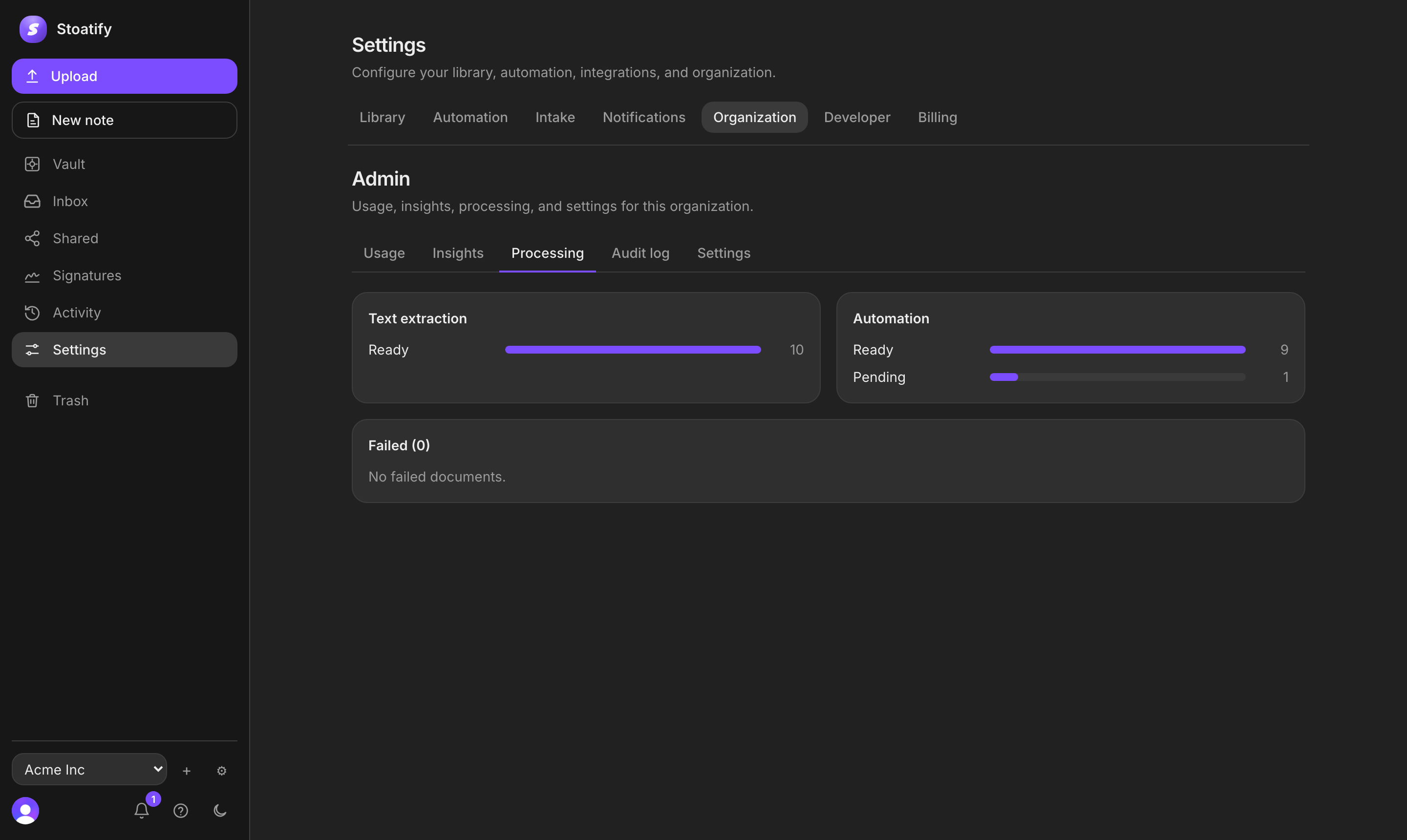
- It's still processing. A freshly uploaded scan is searchable only once it reaches ready. Give a big PDF a moment.
- The text lives in a custom field. A keyword covers a document's title, filename, contents, and note body, not custom-field values. Use the field operator (
invoiceno:123) or the Field filter. - You're matching a tag or category as a word. Those aren't free text, use
tag:/category:or the filter chips. - The language wasn't recognized. If a document is in a language your default OCR set doesn't cover, set the right language on that document and it re-reads. See OCR languages and office formats.
- The scan is too faint. Very low-contrast or skewed photos read poorly. Re-scan on a flat, evenly lit surface for a cleaner read.
- It's in the Trash. Trashed documents drop out of search until you restore them.
Good to know
A document that genuinely failed to extract is marked failed; set the right OCR language or re-upload it to have Stoatify read it again.
Tip
Still stuck on one document? Email support@stoatify.com and we'll take a look.
Was this article helpful?
Stoatify sends only this article's route and your Yes or No choice.