Create and download PDF/A archival copies
What PDF/A-2b preserves, which files qualify, and how to turn archival copies on.
4 min read · Updated July 13, 2026
Stoatify can preserve a separate PDF/A-2b archival copy beside an eligible document. Your original file stays untouched, and the archival copy is available to download from the document's detail view.
What PDF/A means
PDF/A is an ISO-standardized form of PDF built for long-term preservation. It packages the information needed to reproduce the document consistently, including fonts and color information, and avoids dependencies that may disappear over time.
- PDF/A-2 supports modern PDF features while following archival requirements.
- The b conformance level focuses on preserving how every page looks.
- The archival copy is useful for contracts, policies, tax records, compliance evidence, client files, and other material that needs a stable visual record.
Good to know
A PDF/A copy does not replace the original and does not prove that the document is authentic or unchanged before upload. Stoatify keeps the source file as the authoritative original.
Turn on archival copies
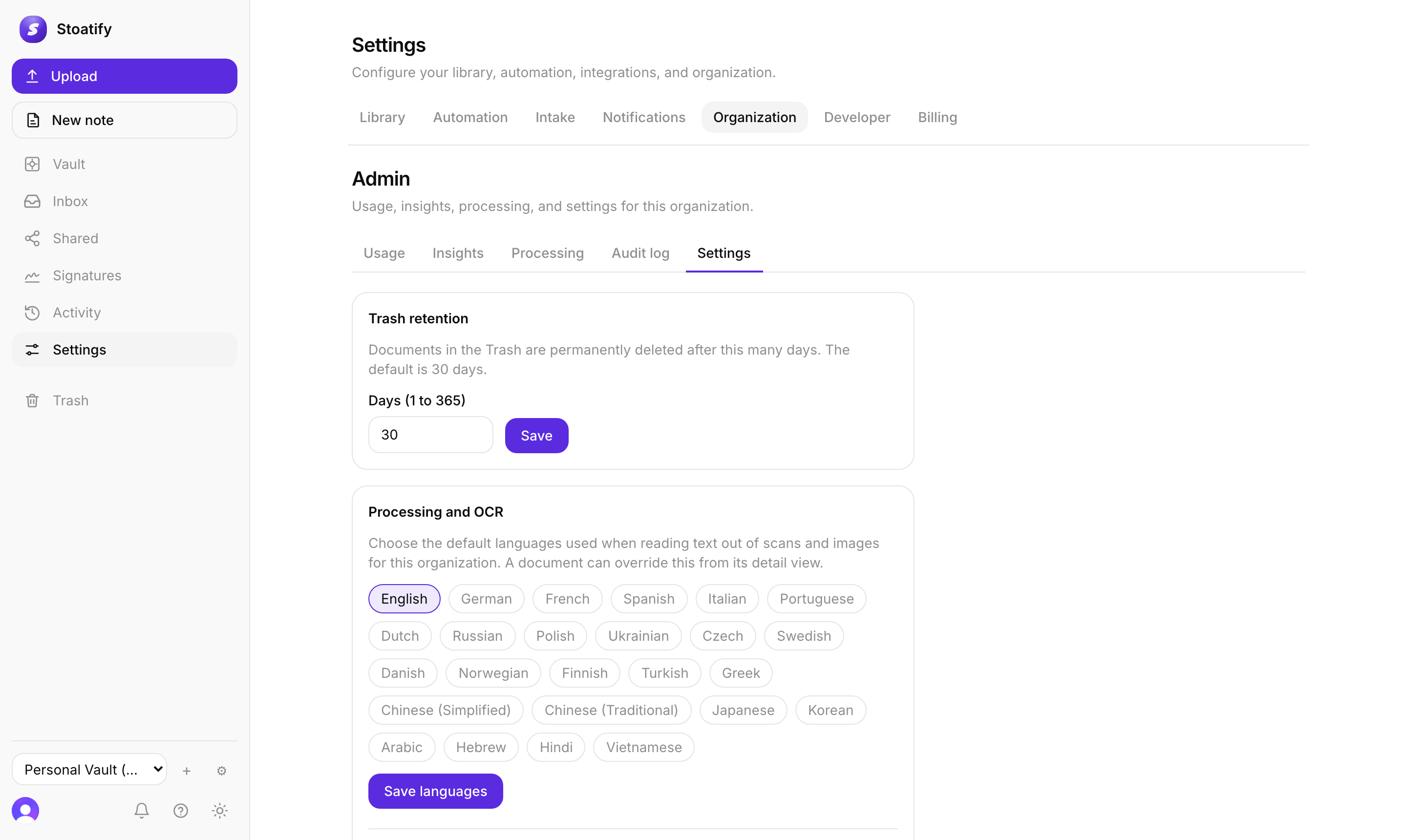
- 1Open Settings, then choose Organization.
- 2Open the Settings tab and find Processing and OCR.
- 3Turn on Generate PDF/A archival copies.
When you turn the setting on, Stoatify queues existing eligible documents that do not have an archival copy. Eligible uploads are handled automatically. Processing can take a little time for large or complex files.
Good to know
Only an organization Owner or Admin can change this setting. PDF/A archival is included with Personal Pro and with Business Team, Business, and Enterprise plans. If the control is unavailable on another plan, see Upgrade or change your plan.
Eligible file types
- PDF files, including born-digital PDFs and scanned PDFs.
- Microsoft Office files: Word, Excel, and PowerPoint.
- OpenDocument files: ODT, ODS, and ODP.
Office and OpenDocument files are rendered to PDF first, then the PDF/A copy is created from that rendition. Images, plain-text files, CSV files, HTML files, and Stoatify notes do not receive a PDF/A copy.
Download an archival copy
- 1Open the document in your vault.
- 2In the detail view, choose Download PDF/A.
- 3Save the PDF/A file wherever you keep exported archival material.
Tip
If Download PDF/A is not visible for an eligible file, check that archival copies are turned on and that processing has finished. The action appears as soon as the copy is ready.
Stoatify sends only this article's route and your Yes or No choice.