Document versions and change history
Re-upload without losing the old copy, and see exactly what changed.
3 min read · Updated July 13, 2026
When you re-upload a document, Stoatify keeps the previous copy as an earlier version instead of overwriting it. You always have the full history, and you can roll back or download any exact revision.
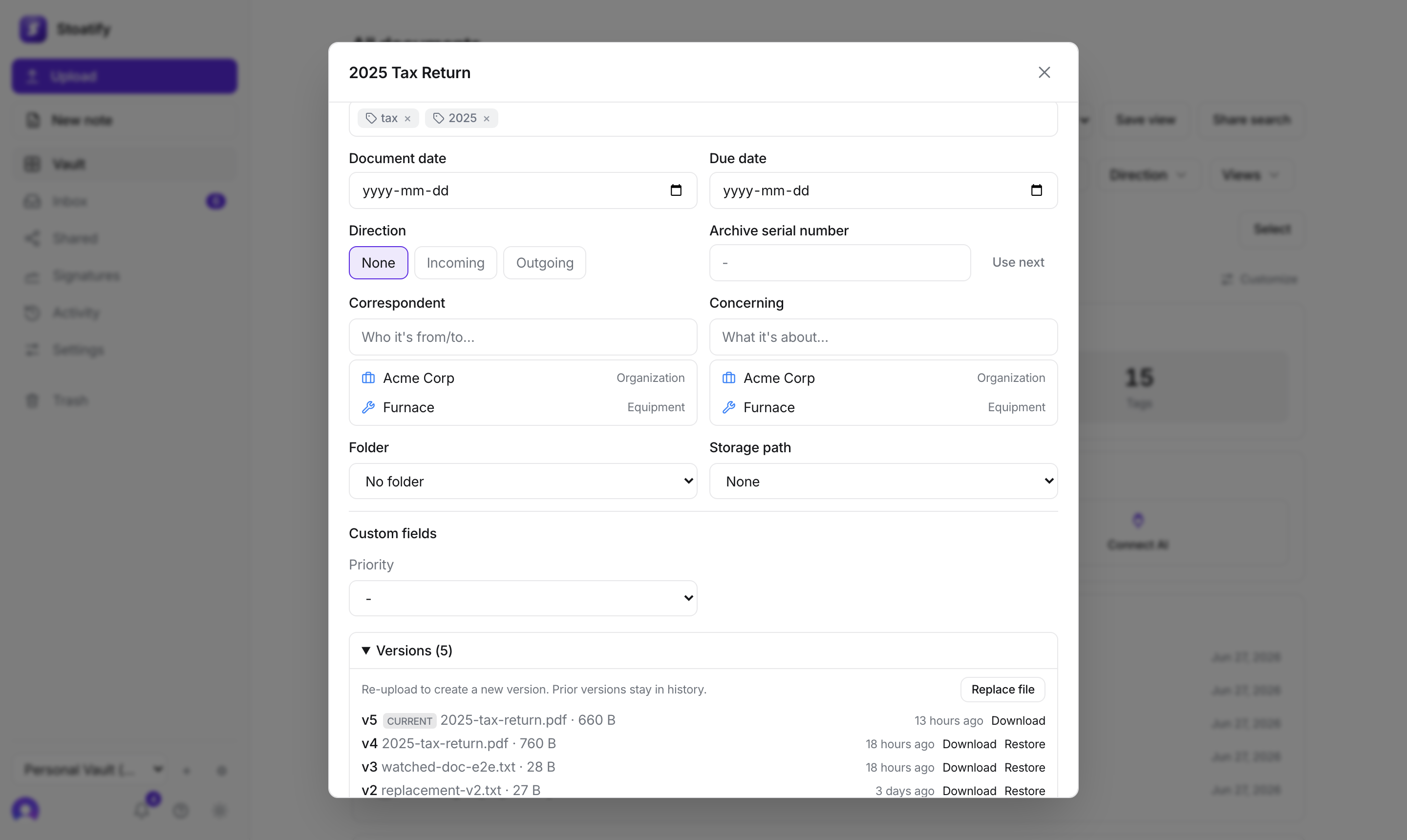
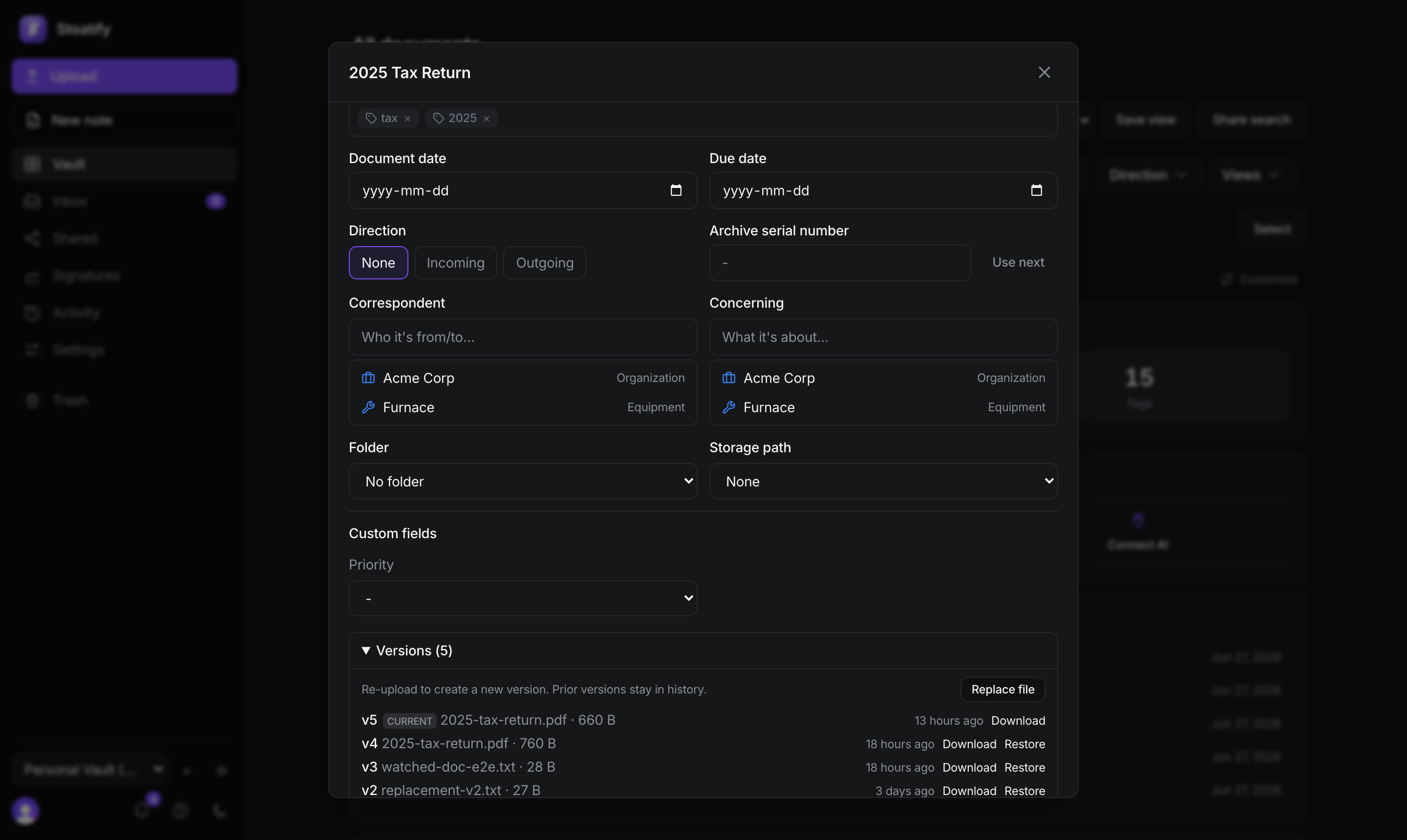
- Versions: re-upload to add a new version; every earlier one is preserved.
- Restore: roll back to any prior version in a single click.
- Per-version download: each version is frozen and addressable, so you can grab the exact revision you need.
- Field-level history: see a before-and-after record of every edit to a document's fields, who changed it and when.
Across the whole organization, the activity feed shows changes to documents, tags, and members in one timeline, handy for teams.
Tip
Versioning pairs well with sharing: a share link always resolves to the current version, so recipients see your latest.
Was this article helpful?
Stoatify sends only this article's route and your Yes or No choice.