Workflows: file documents automatically
Rules that set a category, folder, tags, or contact on documents the moment they arrive.
3 min read · Updated June 28, 2026
A workflow is a rule that does the filing for you. When a document arrives or changes, Stoatify checks it against your conditions and, if it matches, applies the details you chose: a category, a folder, tags, a contact, even a title built from a template.
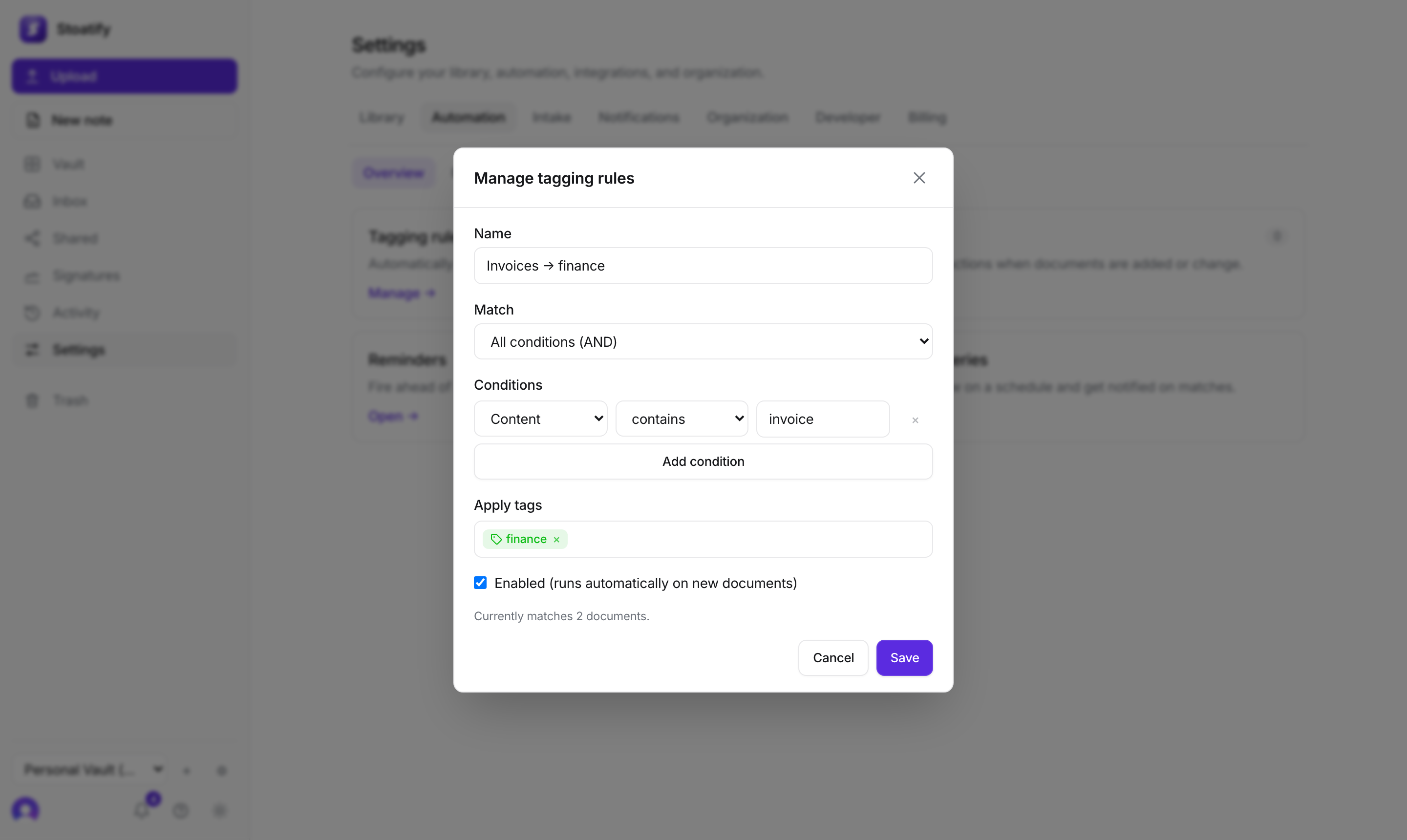
What a workflow can do
- Match on a document's name or contents (contains, equals, starts with, ends with, and their negations), with all or any conditions.
- Assign a category, folder, storage path, correspondent, tags, or a templated title.
- Or move a matching document to Trash.
- Run on new documents, on changes, or on a schedule across everything.
- 1Open Settings → Automation and add a workflow (or a simpler tagging rule if you only need to add tags).
- 2Set the conditions and the actions to apply.
- 3Leave it enabled to run automatically, or run it now across your existing documents.
Good to know
Workflows and tagging rules are part of the paid plans. See Plans and storage limits.
Tip
Just want to add a tag? The lighter-weight tagging rules do exactly that, with a live count of how many documents match.
Was this article helpful?